
If you've ever tried to delete or rename something in Windows and hit an error saying the file is open in another program, you know how frustrating it is.
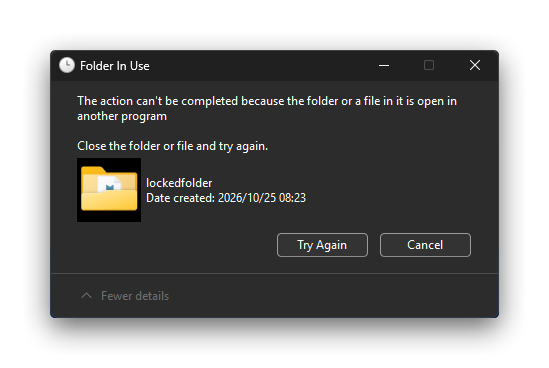
Usually, some background process or forgotten app is holding onto a handle for that file, and Windows won't let go until it's released.
Here is how to track down the culprit and clear the lock so you can get on with your day.
Method 1: Track it down with Resource Monitor
Instead of blindly closing all your open apps, you can use built-in tools to find the exact process causing the issue.
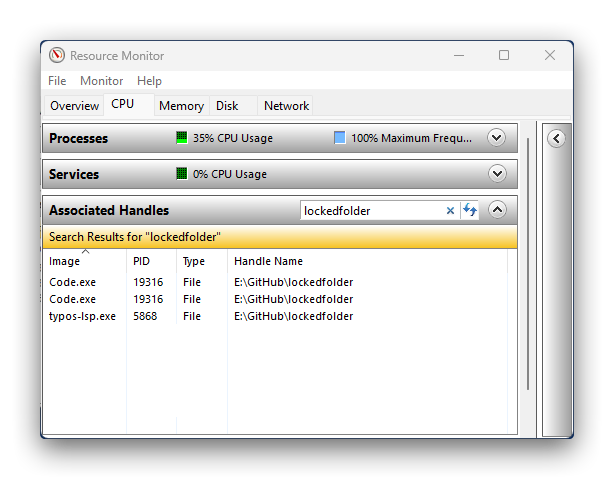
- Press Win + R, type
resmon.exe, and hit Enter. - Go to the CPU tab and click to expand Associated Handles.
- Type the file or folder name into the Search Handles box.
- Look at the matching processes below, right-click the one holding your file, and choose End Process.
- Try deleting or moving the folder again.
Method 2: Restart Windows Explorer
Sometimes the lock isn't a third-party app at all—it's Windows itself. The desktop shell often hangs onto folders you're trying to clear out.
- Press Ctrl + Shift + Esc to open Task Manager.
- Scroll down, find Windows Explorer, right-click it, and click Restart.
- Your taskbar and desktop will flash for a second. Once they come back, try your action again.
Method 3: Use PowerToys (File Locksmith)
If you have Microsoft PowerToys installed, there's a much faster way to handle this.
Turn on File Locksmith in the PowerToys settings, right-click the locked file or folder in your file explorer, and select Unlock with File Locksmith.
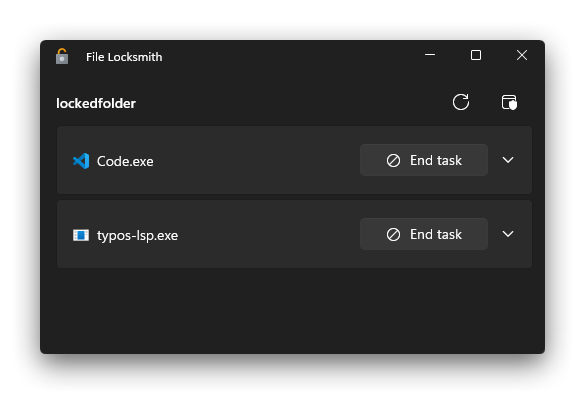
It will show you every process locking the file and let you kill them right from the menu.
Method 4: Reboot your PC
If nothing else works, just restart your computer. A clean reboot wipes temporary file handles out of memory and clears out stubborn background tasks. Once Windows boots back up, the lock will be gone.